Looking for guides on how to connect wireless microphone to speaker? Follow our detailed guide to learn the different ways to establish a seamless connection, ensuring optimal performance using bluetooth. Wireless microphones have become increasingly popular in recent years, providing versatility and convenience in various settings, from concerts to conferences. However, setting up a wireless microphone system can be challenging, particularly for those who are new to the process. This comprehensive guide will outline the necessary steps to connect a wireless microphone to a speaker, ensuring a seamless connection and optimal performance.
how to connect wireless microphone to speaker
Before we delve into the connection process, it is essential to understand the basic components of a wireless microphone system. A typical system consists of a wireless microphone, a receiver, and a speaker. The microphone transmits the audio signal, which the receiver picks up and sends to the speaker. It is crucial to ensure compatibility between these components to establish a successful connection and must be charged. You can check how to properly charge a wireless microphon.
How to connect wireless microphone to speaker: Available Processes
There are several ways to connect a wireless microphone to a speaker, depending on the devices’ features and capabilities. Here, we will discuss three common methods: connecting via Bluetooth, using a wireless receiver, and connecting through a mixer or audio interface. We will discuss these three on this guide on how to connect wireless microphone to speaker.
Bluetooth: connect microphone to bluetooth speaker
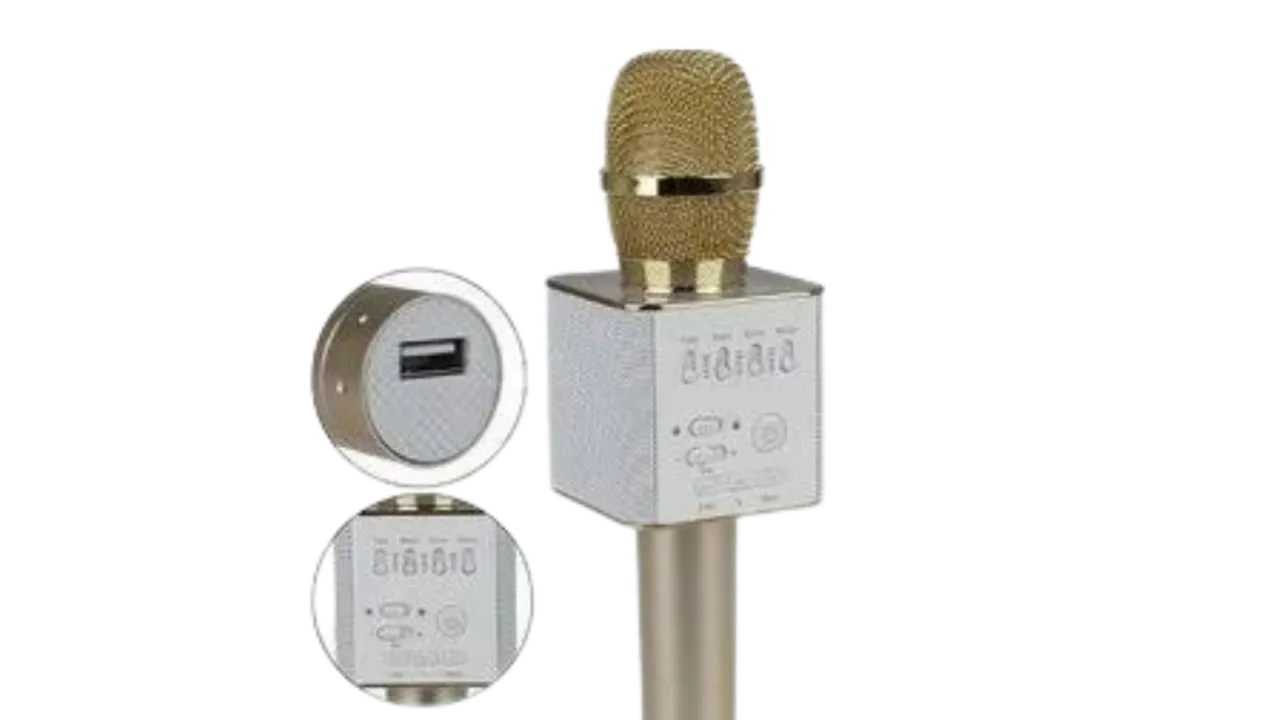
If your wireless microphone and speaker both have built-in Bluetooth capabilities, you can establish a direct connection without additional equipment, this is the most popular method (i.e why we made it first on this our guide on how to connect wireless microphone to speaker) Follow these steps:
- Turn on the Bluetooth feature on both devices. This process may vary depending on the specific devices, so consult the user manuals for guidance.
- Place the devices within close proximity (usually within 30 feet) to ensure a strong connection.
- Initiate the pairing process on the microphone and search for available devices on the speaker.
- Select the microphone from the list of available devices on the speaker to establish the connection.
- Test the connection by speaking into the microphone and ensuring the sound is emitted through the speaker.
Connecting using a Wireless Receiver

If your wireless microphone system includes a separate receiver, follow these steps:
- Connect the receiver to a power source and turn it on.
- Turn on the wireless microphone.
- Ensure the receiver and microphone are set to the same frequency to establish a connection.
- Connect the receiver’s audio output to the speaker’s input using an appropriate cable (typically XLR, 1/4″, or RCA).
- Turn on the speaker and adjust the volume levels accordingly.
- Test the connection by speaking into the microphone and ensuring the sound is emitted through the speaker.
Connecting through a Mixer or Audio Interface

For more complex setups or higher sound quality, you may want to connect the wireless microphone to a speaker through a mixer or audio interface. Follow these steps:
- Connect the wireless microphone’s receiver to a power source and turn it on.
- Turn on the wireless microphone and ensure it is set to the same frequency as the receiver.
- Connect the receiver’s audio output to an input channel on the mixer or audio interface using an appropriate cable (typically XLR, 1/4″, or RCA).
- Connect the mixer or audio interface’s main output to the speaker’s input using an appropriate cable (usually XLR or 1/4″).
- Turn on the speaker and mixer or audio interface, and adjust the volume levels accordingly
- Test the connection by speaking into the microphone and ensuring the sound is emitted through the speaker. Adjust the input channel’s gain, equalization, and other settings on the mixer or audio interface for optimal sound quality.
Troubleshooting Common Connection Issues
If you encounter any issues while connecting your wireless microphone to a speaker, maybe not covered on this our guide on how to connect wireless microphone to speaker consider the following troubleshooting tips:
- Double-check all connections and ensure cables are securely plugged in.
- Verify that the microphone and receiver are set to the same frequency.
- Check the devices’ user manuals for any specific setup instructions.
- Ensure the microphone, receiver, and speaker are powered on and have sufficient battery life.
- Try connecting the devices in a different order or using alternative cables to rule out any faulty equipment.
- If the problem persists, consult the manufacturer’s support resources or seek professional assistance.
Optimizing Sound Quality and Performance
To achieve the best sound quality and performance from your wireless microphone system, consider the following tips:
- Position the microphone and speaker appropriately to minimize feedback and ensure adequate sound coverage.
- Use high-quality cables and connectors for better signal transmission.
- Regularly test and maintain your equipment to prevent unexpected issues during use.
- Adjust the microphone’s gain, equalization, and other settings on the mixer or audio interface for optimal sound quality.
- Consider using a soundcheck before events to fine-tune the system for the specific environment.
Frequently Asked Questions (FAQs) on “How to Connect a Wireless Microphone to a Speaker”:
Q: Can I connect any wireless microphone to any speaker?
A: Not all wireless microphones and speakers are universally compatible. It is essential to ensure that the devices have the appropriate connectivity options (e.g., Bluetooth, XLR, 1/4″, or RCA) and are designed to work together. Consult the user manuals or manufacturer’s specifications for compatibility information.
Q: How far can a wireless microphone transmit audio to a speaker?
A: The transmission range of a wireless microphone depends on the specific model and technology used. Most wireless systems can transmit audio within a range of 100-300 feet, but higher-end models may offer even greater distances. Consult the microphone’s specifications for accurate information on its transmission range.
Q: What is the best method to connect a wireless microphone to a speaker for optimal sound quality?
A: Connecting a wireless microphone to a speaker through a mixer or audio interface generally provides the best sound quality. This setup allows you to adjust various settings, such as gain, equalization, and compression, to achieve optimal audio performance.
Q: Can I connect multiple wireless microphones to a single speaker?
A: Yes, you can connect multiple wireless microphones to a single speaker by using a mixer or audio interface with multiple input channels. Connect each microphone’s receiver to a separate input channel on the mixer or audio interface and adjust the settings accordingly.
Q: Why is there a delay between speaking into the microphone and hearing the sound from the speaker?
A: Some wireless systems may have latency or a slight delay between the microphone capturing the audio and the speaker emitting the sound. This latency can be affected by the devices’ processing capabilities, transmission distance, and other factors. For minimal latency, consider using higher-end wireless systems or wired connections.
Q: How do I prevent feedback when using a wireless microphone with a speaker?
A: To minimize feedback, position the microphone and speaker appropriately, ensuring the speaker is not pointed directly at the microphone. Additionally, adjust the gain and equalization settings on the mixer or audio interface to reduce the likelihood of feedback.
Conclusion
Connecting a wireless microphone to a speaker can be a simple process when following the appropriate steps. Whether you’re connecting via Bluetooth, using a wireless receiver, or integrating a mixer or audio interface, ensure all components are compatible and functioning correctly. By understanding the connection process and troubleshooting any issues, you’ll be on your way to enjoying a seamless wireless microphone experience. I hope this guide on how to connect wireless microphone to speaker solved your need, please share on your social media pages because someone might need it.